User Guide
Everything you need to manage your hosting services, domains, payments, invoices, and support requests from your Zergaw hosting account.
01 Accessing your account
Your Zergaw hosting client area is where you manage your services and account information.
- Visit host.zergaw.com.
- Click Login.
- Enter your registered email address and password.
- Click Login to open your client dashboard.
02 Your client dashboard
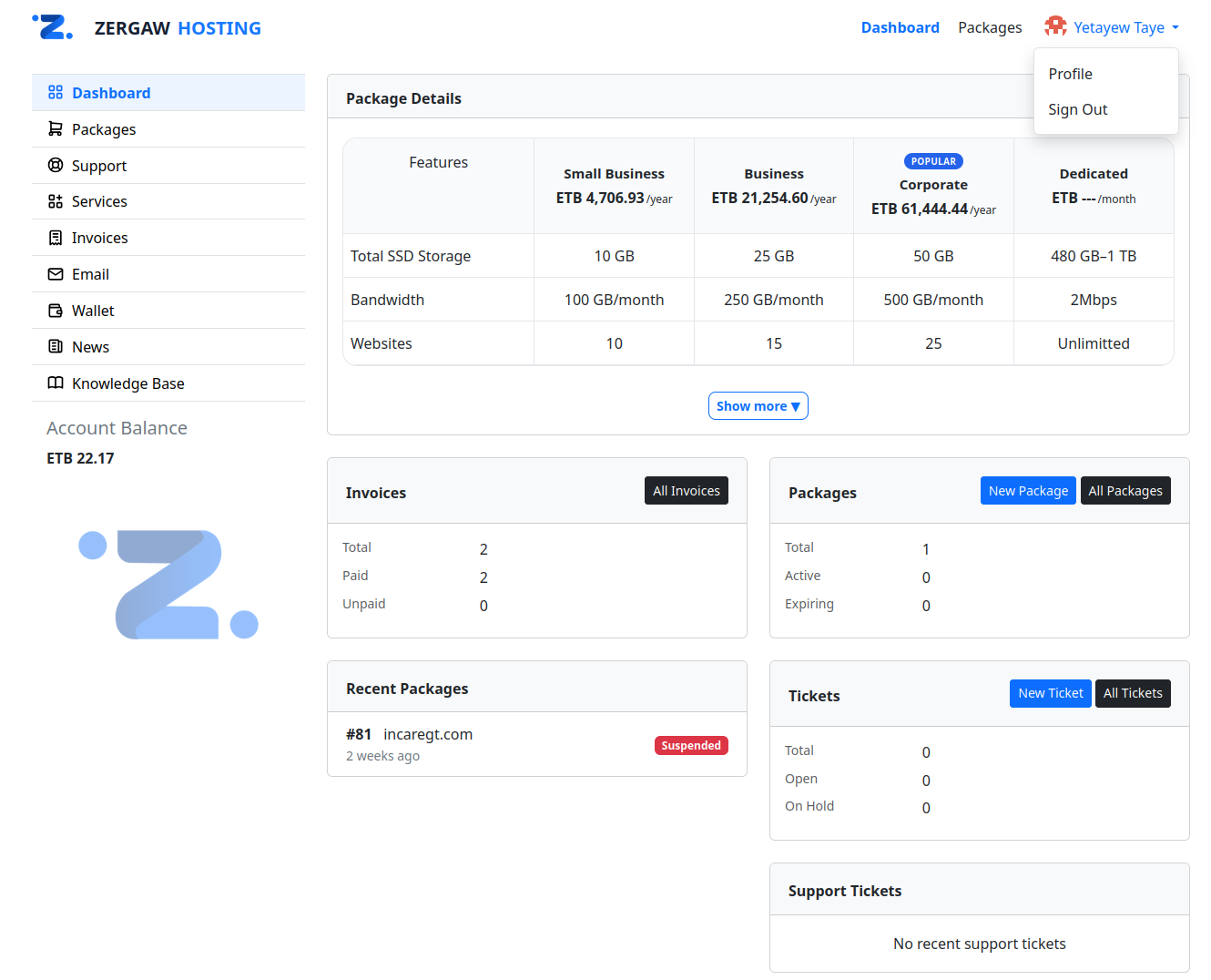
After signing in, use the client area to access the services and account features available to you.
03 Ordering a hosting service
- Open the hosting package plans page.
- Select the package that suits your needs.
- Choose an available billing period, such as annual billing.
- Enter your domain name or select an available domain-registration option.
- Review the package price and any additional charges.
- Click Continue and complete checkout.
- Allow up to two minutes after checkout for the service to become active.
04 Managing hosting services
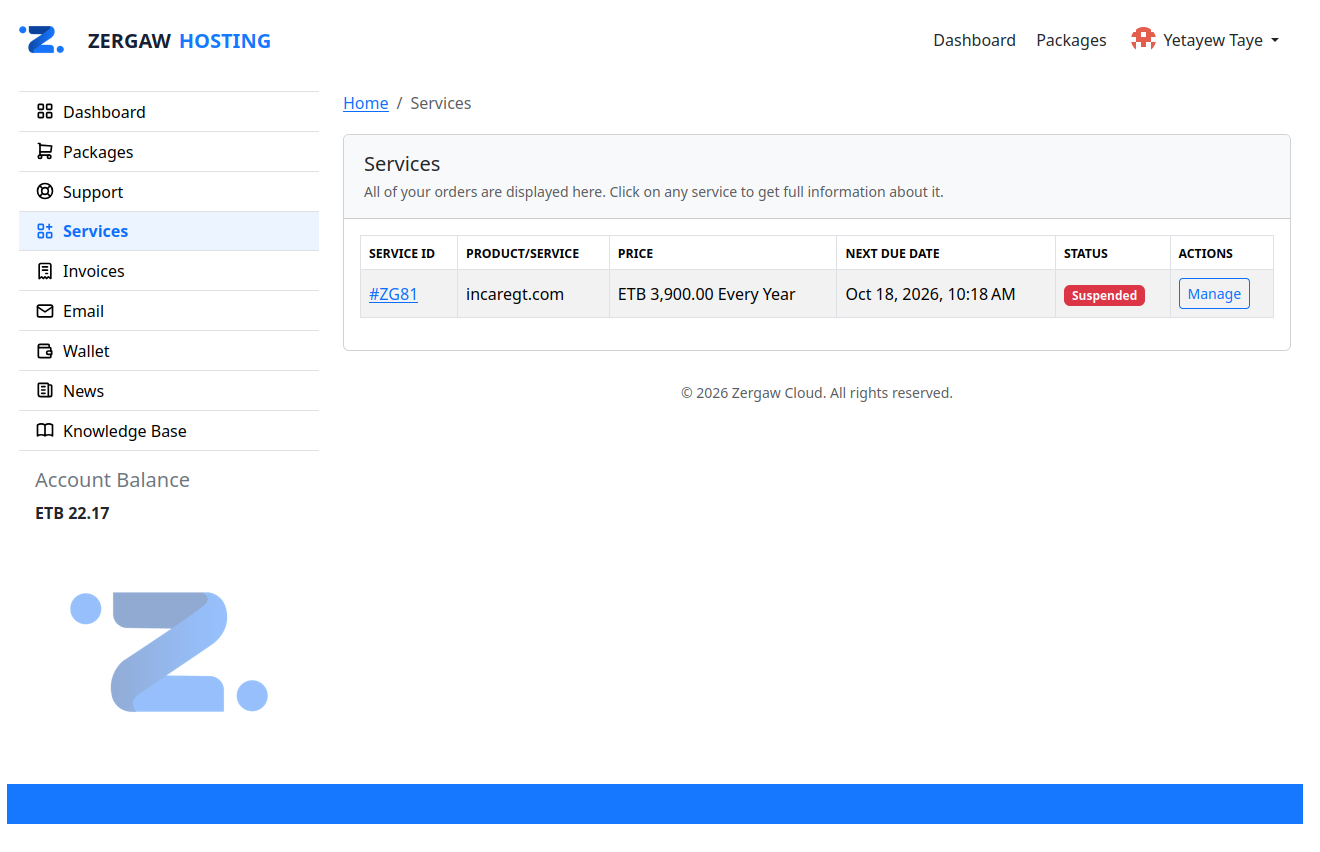
- Log in to your client area.
- Open Services.
- Select the hosting service you want to manage.
- Review the available service details and management options.
Depending on your package, the service page may show your hosting plan, domain, username, server details, password controls, renewal date, and billing information.
Changing your hosting password
- Open the relevant hosting service.
- Locate the hosting password controls.
- Use View or Copy if available.
- Select Change Password, enter the new password, and save it.
05 Managing domains
- Log in to your account.
- Open Services and select the relevant domain, if it is listed there.
- Review the available domain details and management options.
Depending on your registrar and domain, available operations may include:
- Checking registration and expiration dates.
- Reviewing domain status and renewal options.
- Updating contact information.
- Managing nameservers.
- Transferring the domain to another registrar.
06 Viewing and paying invoices
- Log in to your client area.
- Open Invoices.
- Select the Unpaid or Paid tab.
- Open the invoice you want to review.
- Check its items, total amount, due date, and payment status.
Understanding invoice status
Unpaid Payment is still required. Paid Payment has been recorded. Cancelled The invoice has been cancelled. Refunded A payment has been refunded, where applicable.
Paying an invoice with Telebirr
- Open the unpaid invoice and review the amount due.
- Click Pay.
- Select Telebirr from the available payment methods.
- Follow the payment instructions and complete the transaction.
- Return to the invoice and check that its status has updated.
07 Adding funds to your account
If wallet funding is available for your account, you can add funds for use against eligible invoices.
- Open Wallet.
- Enter the amount you want to add.
- Review the applicable minimums and restrictions.
- Click Add Funds.
- Select Telebirr, if available, and follow the payment instructions.
- Verify that your wallet balance has been updated.
08 Renewing a service
- Open Services.
- Select the hosting service or domain you want to renew.
- Check its renewal date and available renewal options.
- Follow the renewal or invoice instructions.
- Complete payment before the expiration date.
Some services may renew automatically when automatic renewal is enabled; others require a manual renewal order.
09 Opening and tracking support tickets
- Open Support and select Open New Ticket.
- Choose the department that best matches your issue.
- Enter a clear subject and describe the problem.
- Include relevant error messages and screenshots when useful.
- Submit the ticket and check your ticket list for replies.
Choosing the right department
Following up on a ticket
Open your ticket list, select the ticket, read the support team's response, and reply in the same conversation. Avoid opening duplicate tickets for the same issue unless support asks you to.
10 Updating your profile
- Open your profile or account settings.
- Review your name, email address, phone number, and other available fields.
- Update the details that need changing.
- Complete phone verification if prompted.
- Save your changes.
11 Changing your client-area password
Your client-area password is separate from the password used to access your hosting control panel.
- Open your client-area profile.
- Locate the password-change option.
- Enter your current password if requested.
- Enter and confirm your new password.
- Save the changes.
Use a strong, unique password that you do not use on other websites.
12 Common problems
I paid, but my invoice still shows Unpaid.
Allow time for payment confirmation. If the status does not update, contact support with your invoice number and payment reference. Avoid making another payment until the first transaction's status is clear.
My hosting service is suspended.
Check your service status and outstanding invoices. If payment is complete but the service remains suspended, open a technical support ticket and include your service details and payment reference.
I cannot access my hosting account.
Check your hosting username, password, and server details. Use the hosting password controls in your client area if available, or contact technical support.
My website is not working.
Check your service status and domain configuration. If the issue continues, open a technical support ticket with your website address and any error messages.
My domain is about to expire.
Review the domain's expiration date and renewal options. If you cannot find the renewal option, contact support before the domain expires.
I cannot log in to the client area.
Check your registered email address and password. Use the password-recovery option if necessary. If you still cannot sign in, contact support.
My order has not become active.
Allow up to two minutes after checkout. If the service is still not active, review the order status and contact support with your order reference.
13 Security recommendations
- Use strong, unique passwords for your client area and hosting accounts.
- Keep your registered email address and contact information up to date.
- Never share passwords or payment verification codes.
- Review invoice amounts and pay before the due date.
- Keep domain registration information current.
- Contact support through the official client area if you suspect unauthorized access.
- Never include passwords or other sensitive credentials in support tickets.
14 Getting help
If you cannot resolve an issue through your client area, submit a support ticket to the appropriate department.
To help the support team investigate efficiently, provide:
- The affected service or domain.
- The relevant order, invoice, or ticket number.
- A clear description of the problem.
- The time the problem occurred and any error messages.
- A screenshot, if it helps explain the issue.